 +1 (800) 844-6603
 Facebook page






Guides in this section
- OROPOS – Order Taking
- OROPOS-Order Types
- iPP320 Configuration
- Receipts Cutting Off - price not printing properly
- What is Drawer Accountable and Cash To Deposit in Cash Drawer Report?
- How to migrate derby single ( embedded ) to derby server
- How can I add barcode in customer receipts?
- Dejavoo Z6 , Z9 , Z11 Configuration
- How to activate POS & plugin licenses
- Minimum Requirements
- New Store Setup Wizard
- Floorplan Configuration
- Home Delivery and Pick up Using Cust Plugin
- Setting Up A Digital Weight Scale
- Retail Order Type - How to setup Retail Stores
- Variants In ORO POS
- Store configuration
- Custom Payments in ORO POS
- Inventory On Hand Report
- Customer Loyalty Management
- Re Order Level & Shopping List
- Inventory Configuration
- ORO POS Demo Installation
- Inventory Location Set Up
- Inventory Stock Count
- Inventory: adding a new Vendor
- Inventory Purchase order
- Inventory Stock Conversion
- Inventory Transfer
- FloorPlan: adding A New Floor
- FloorPlan: adding Tables
- FloorPlan: Table Types
- Recipe / Bill of Materials ( BoM )
- Ticket Splitting in ORO POS
- New employee permissions
- Applying Modifier Group of a Menu Item to Other Menu Items
- How to make Hotel Room Reservation / Booking
- How to make Table Reservation / Booking
- Paid, Closed and Open Ticket status
- Coupons, Discounts & Reprice
- Selling Lotteries and Paying Out Winning Tickets
- Emailing Daily Sales Report
- Void & Refund in ORO POS
- Configuring Service Charge
- Payment from customer balance
- Void Item Report
- Sales Report (Non-Inventory Items)
- Sales Report (Inventory Items)
- Configuring Receipt for Different Paper sizes
- Sending Transaction Receipts Via Email
- Adding sticker printer in ORO POS
- Session summary report
- End of day summary report
- Tax-exempt report
- Understanding Sales Balance Report
- Understanding Token Number
- Pre-authorize & Tips Processing
- Capture Credit Card Transactions
- Seat based order
- Showing details of menu items while adding to customers order
- Understanding Gross Receivable, Receipt Differential and Tips Differential
- Understanding ticket number and token number
- PAX S300 Configuration
- Configuring Cash Drawer
- Adding Pizza in ORO POS
- Understanding Tips Payout
- Migration from Floreant POS to ORO POS
- Migrating from Aldelo POS
- Getting ready for Live system
- Configuring Receipt Printer
- Configuring Kitchen Printer
- Printing barcode labels for products
- Modifier price rules
- Hiding server summary button in user view
- Showing tickets on right side in the order view
- Price List
- Changing users password
- Penny Rounding For Canada
- Adding default service charge
- Generating & Activating Gift Card
- Bar Tab
- Making drinks/beverage mandatory in an order type
- Hide MISC button in order
- Configuring IDTECH SecuRED MSR payment device
- Different types of Units in ORO POS
- User type permission
- Combo Items
- Menu page designer
- Menu Group vs Category
- Setting Up Multi-Currency System
- Edit employee clock-in or clock-out time
- Setting up master terminal
- Terminal wise Order Type
- Taxing To-Go Food
- Tax Settings
- Send vs Hold vs Done
- Setting up meal courses.
- How to setup Caller ID device in Cust Plugin
- Visual Receipt Design
- Kitchen Display (KDS) Configuration
- Multiple roles and user permissions.
- Customer Monitor
- Kitchen Item Sticker
- Database setup for Multiple Terminals
- Product and Items in ORO POS
- How to setup your Menu
- Importing Items from Spreadsheet
- Store sessions, opening and closing store
- Translate UI in OROPOS
- Recommended Hardware
Releted Guides
Setting up Cloud Database for Siiopa
Siiopa is our fully cloud-based android POS system. This is available in google play store. You can install it in any tablet/mobile using android 6.0 or higher.
- Registration in the Cloud
- Menu Programming
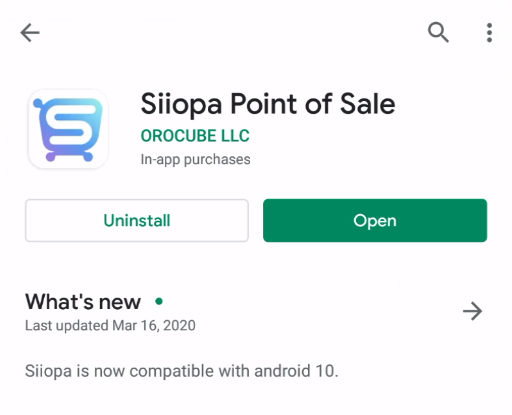
After downloading Siiopa from app store follow the steps below to configure your store.
If you have an existing Siiopa account just log in to your account or register your store if you are a 1st time user.
Steps to register
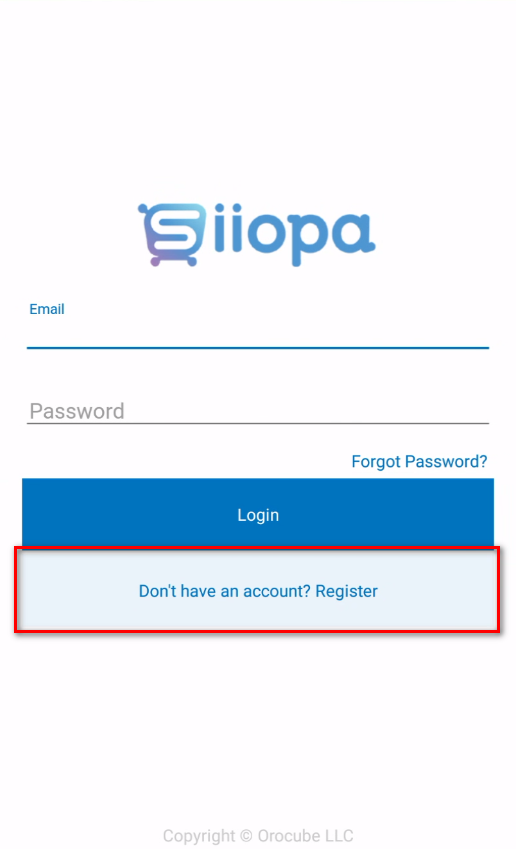
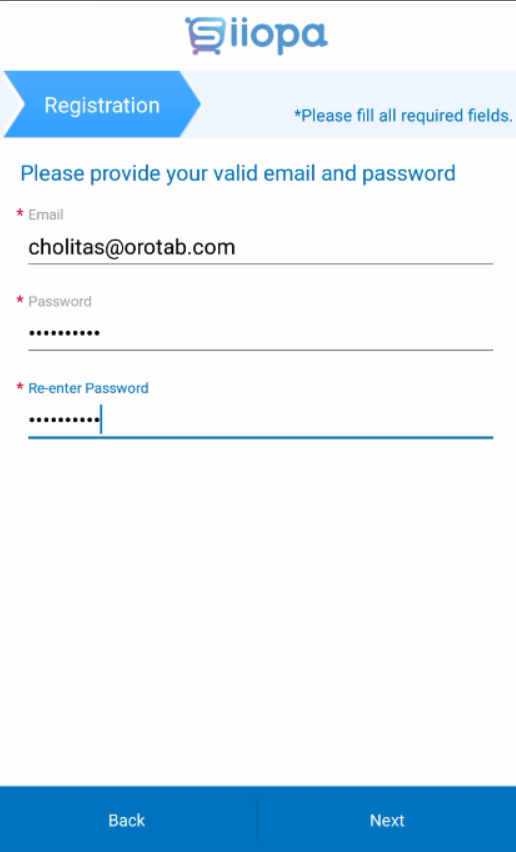
Enter your business name,
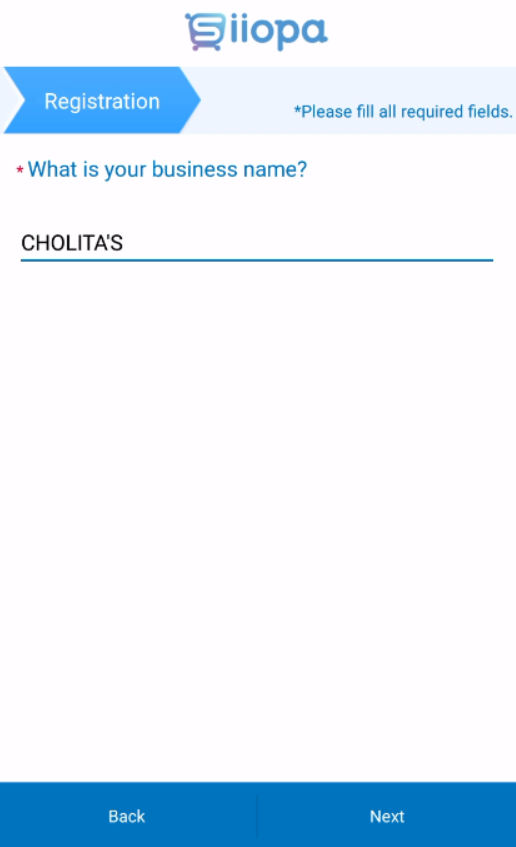
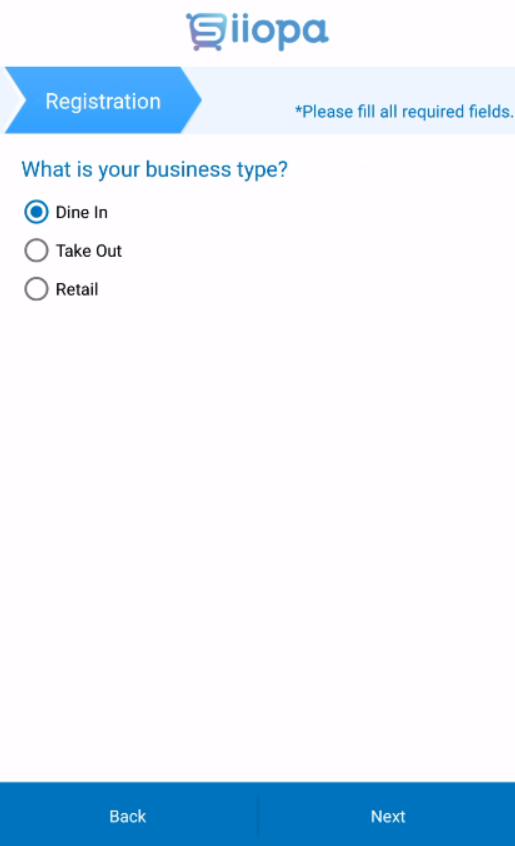
Enter your business type,
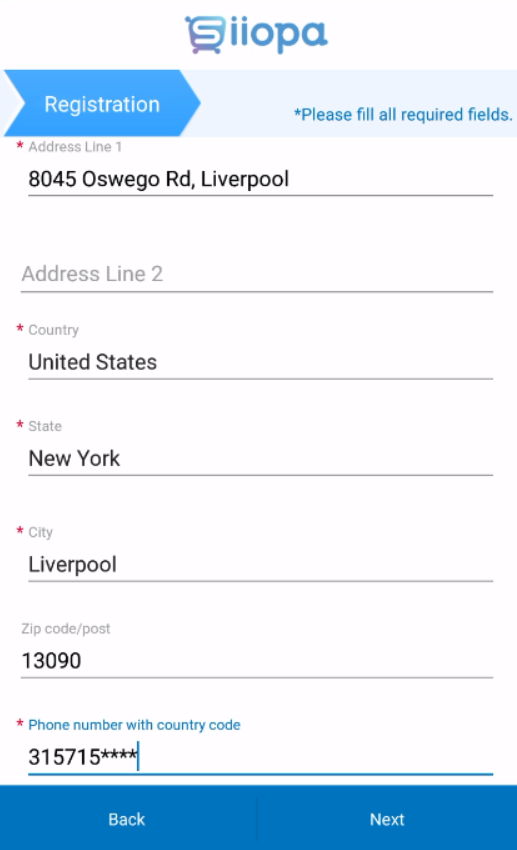
Enter your business location,
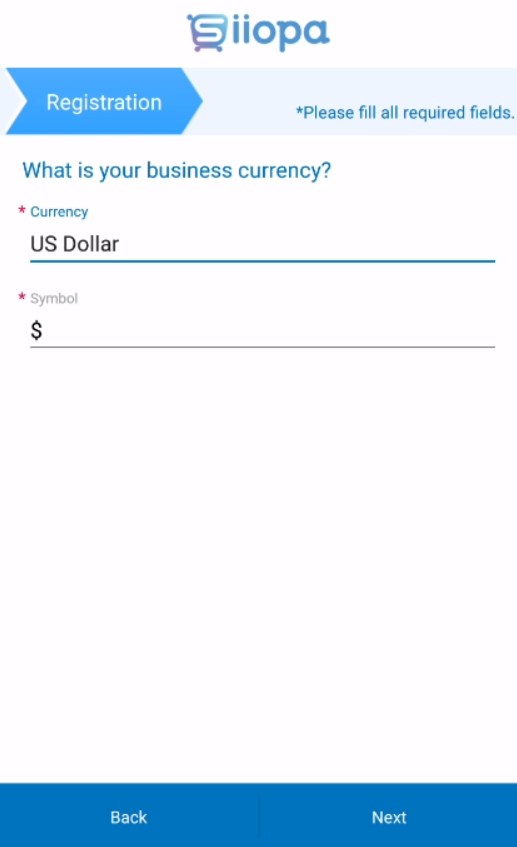
Enter your currency,
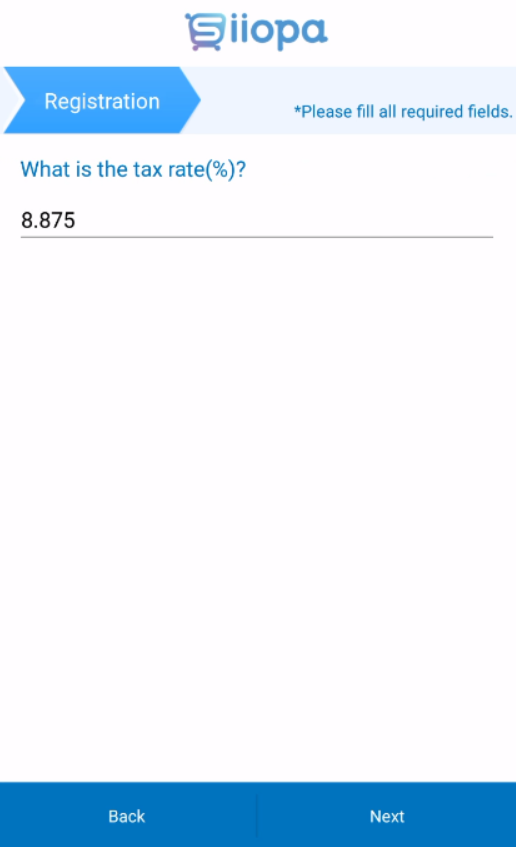
Tax rate,
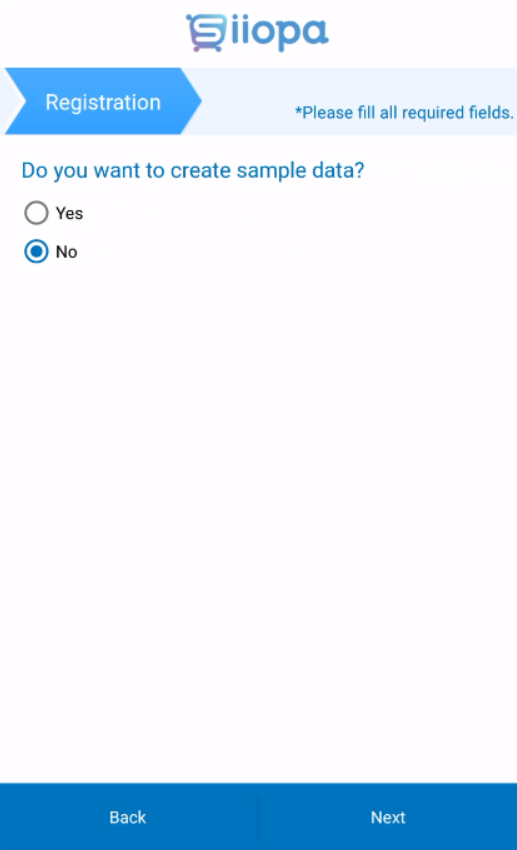
If you want to test the system with some sample menu items then check Yes . Live store users configuring their store should use NO here,
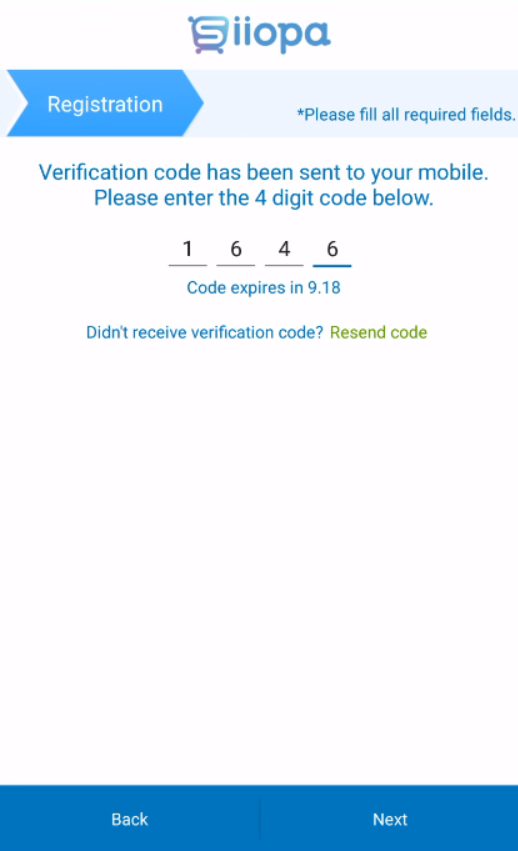
Now you will receive a mobile notification with a pin code to register your store in Siiopa,
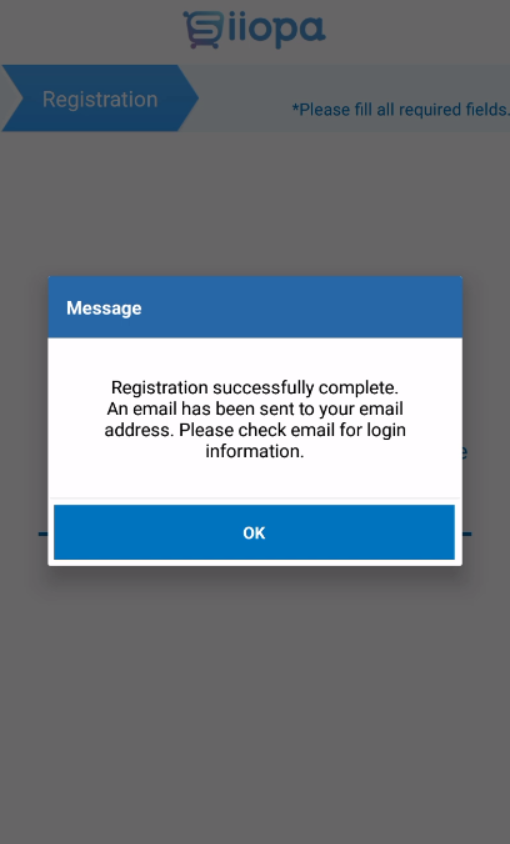
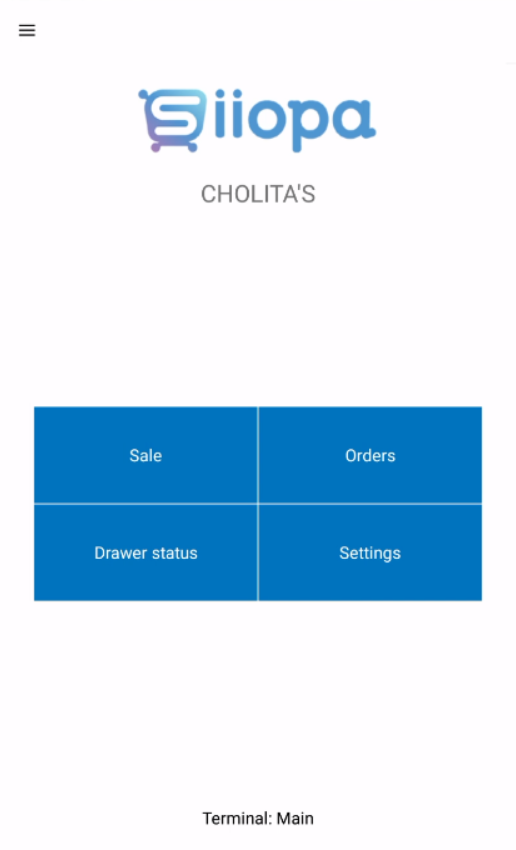
You will receive a registration successful message in this stage,
Menu Programming
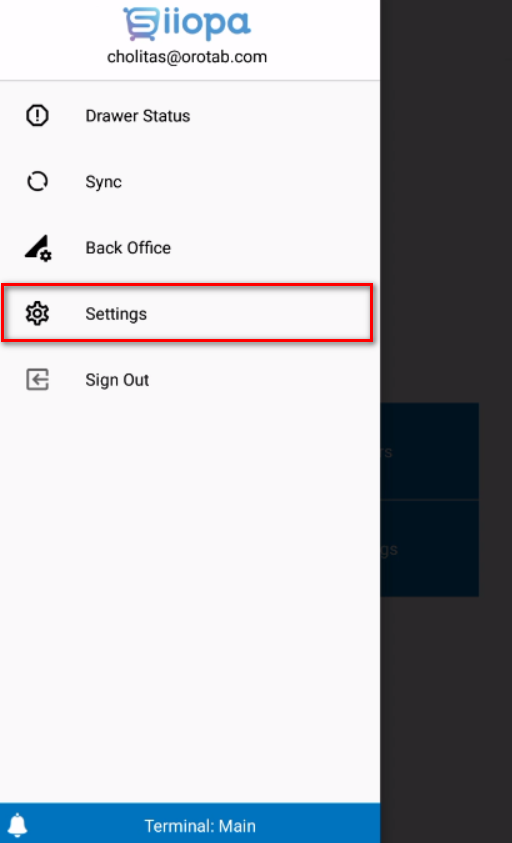
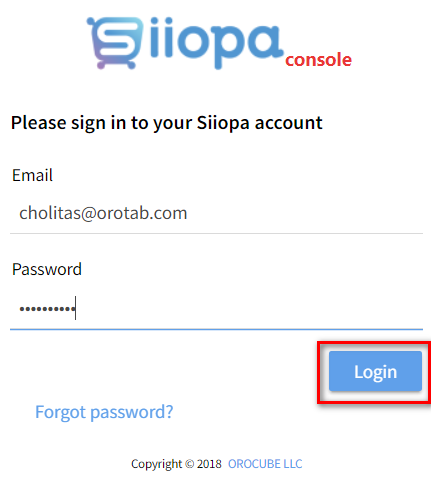
Now to set your menu items, you can go to the settings from your app or from siiopa.com and log in using your Email ID and Password
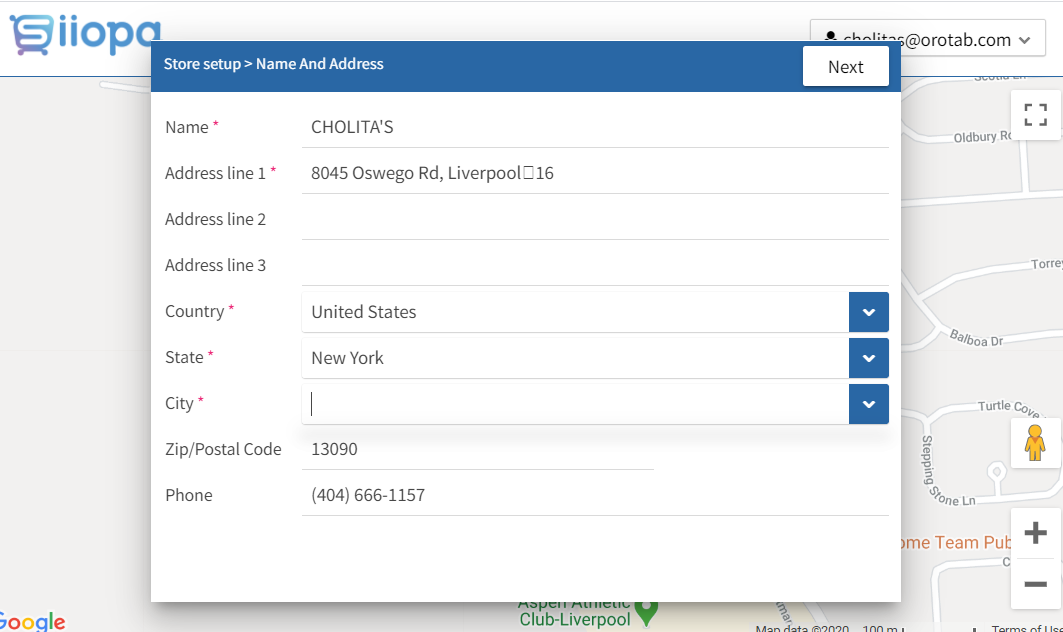
In this stage, the system will try to reconfirm the exact store location to locate the store on the google map. Insert your store location here or check if the store location you provided is correct,
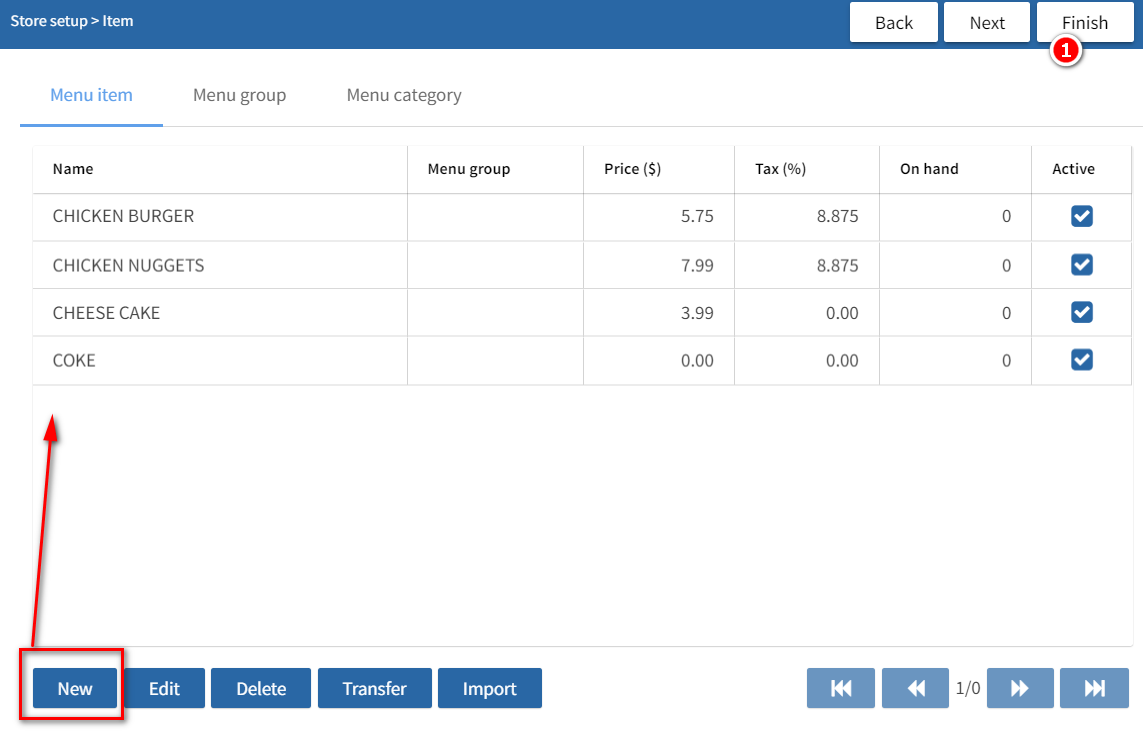
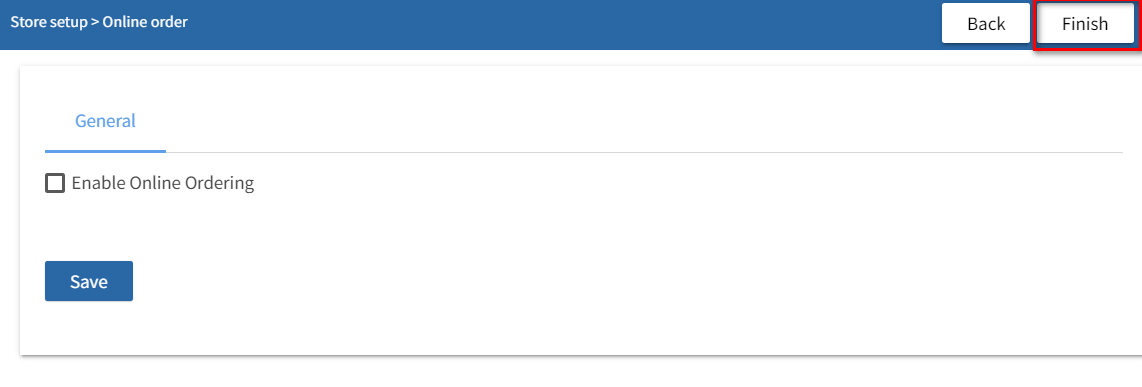
Now add your menu items here. You can also import your menu items here from spreadsheet. Once you are done entering your menu items, click on the finish button on the top right corner(1).
Everytime you make any changes in the cloud, you will receive a notification in your phone and your Siiopa app will automatically add the same changes in the app.
Online order is not yet implemented with Siiopa, so please ignore the next step and click on the finish in the top right corner.
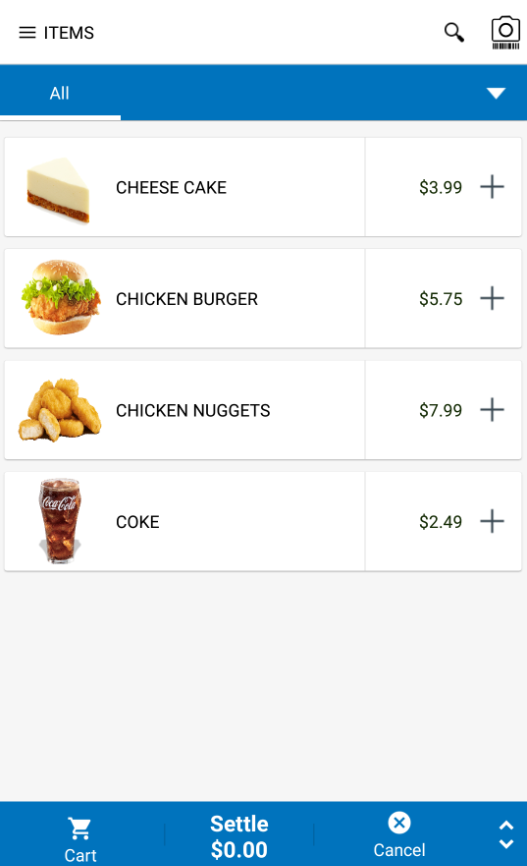
By default, the items are shown in Lists,
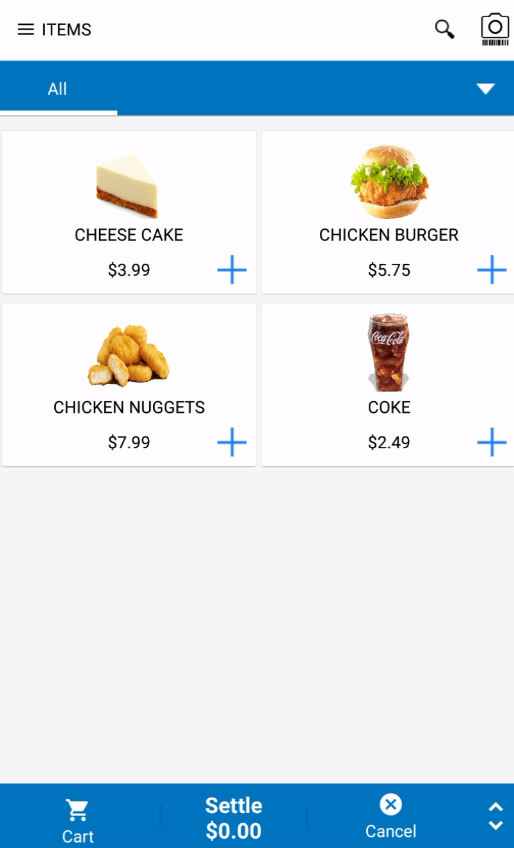
Otherwise, If you want to show your menu items in a Grid Mode visit, settings–> terminal settings–> turn on show item on the grid
Now take an order, clicking on the menu items
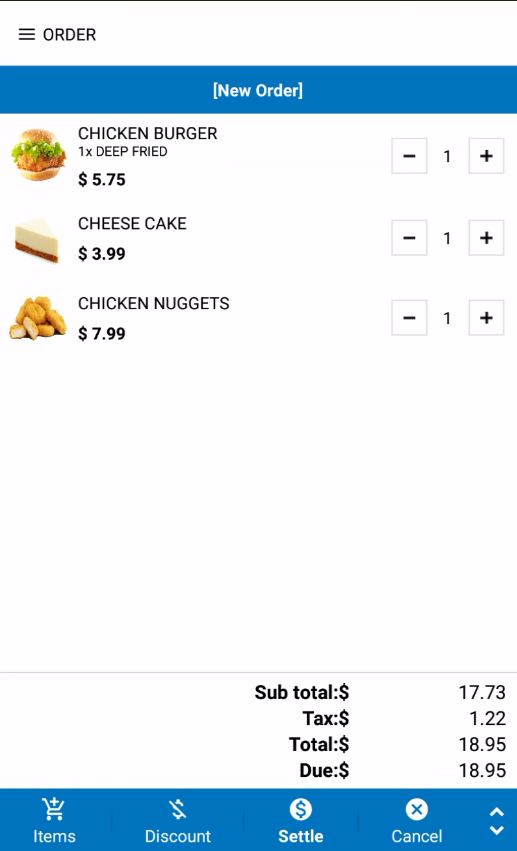
If you have modifiers in any items, will look like the following,
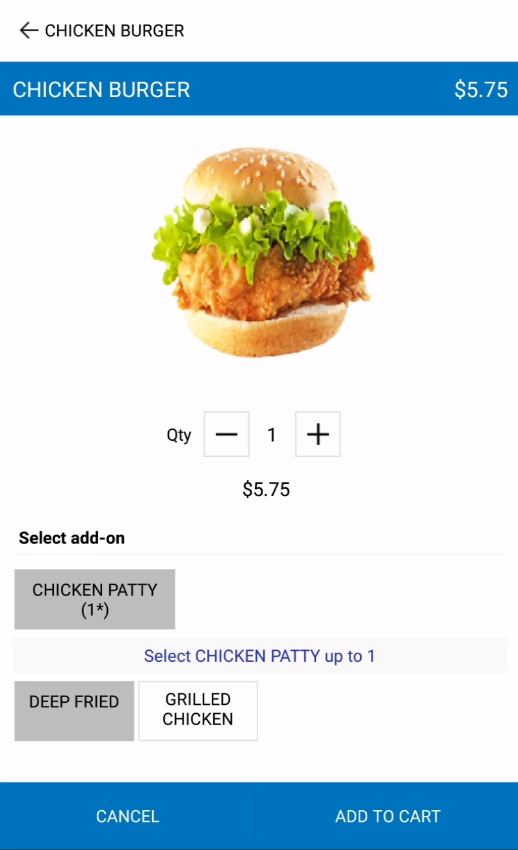
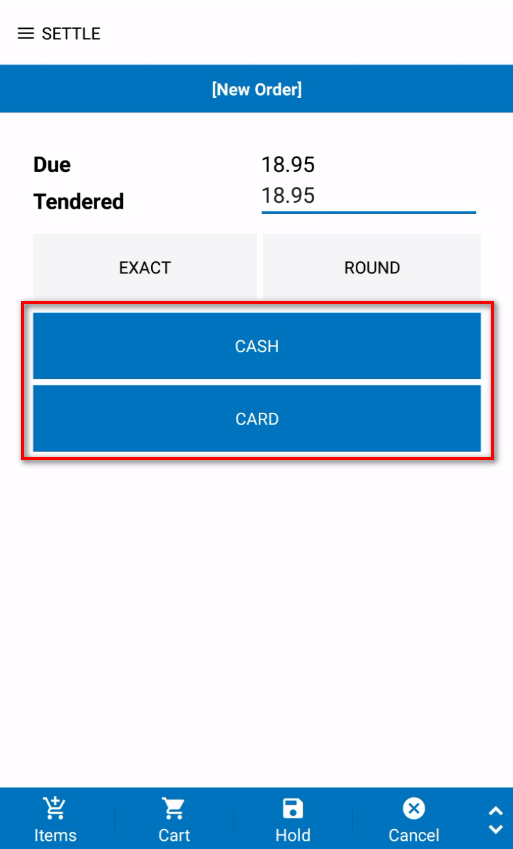
By clicking on the Settle button you can go to the settlement screen and take payments,
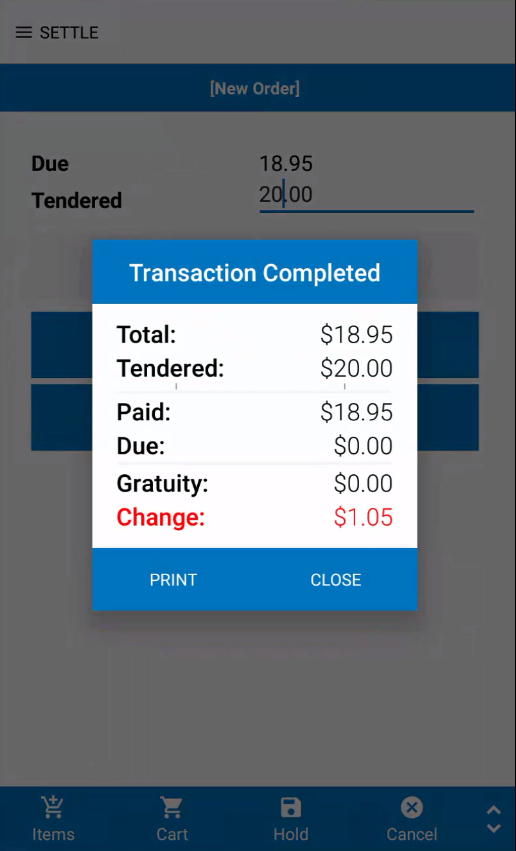
To print a receipt, you need to configure a printer from Siiopa–>settings–> print config
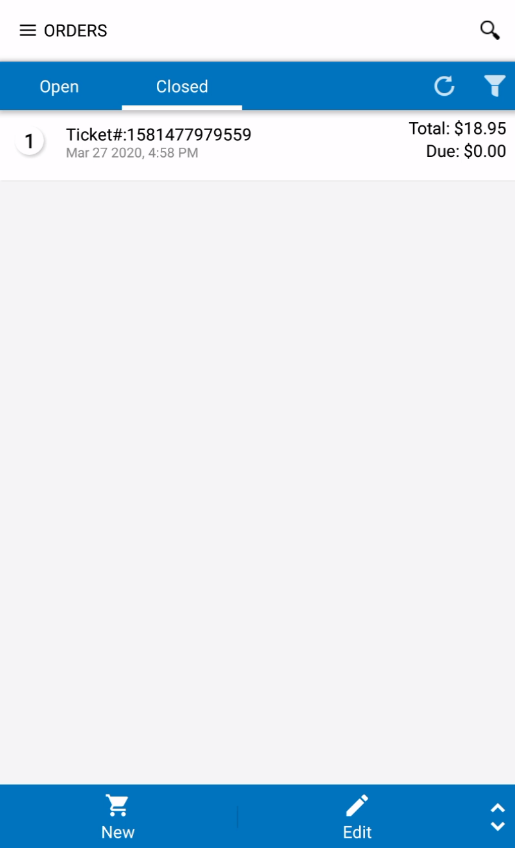
To find your closed/open orders visit siiopa–>orders–> open/closed
Disclaimer: The information and media included on this website are not legal documents. Whilst we make every attempt to ensure the accuracy and reliability of the information contained in the documents stored, served and accessed on this site, this information should not be relied upon as a substitute for formal advice from our company. Features described in this document are subject to change without any notice.